 Citerank
AI Traffic: visitors and reads from AI assistants, measured
AI Traffic measures, from your own server, how many people AI assistants send you, from which assistant, and how often assistants read your pages to answer someone, index them or train on them. Connect a Cloudflare Worker, the WordPress plugin, a log drain or upload a log file.
Step by step
- Open AI Traffic #
Find it under AI Visibility, Brand, in the left sidebar, and choose the domain.
- Connect a source #
Pick the Cloudflare Worker (best coverage, sees cached pages too), the WordPress plugin (1.8 or later), a log drain (Vercel, Netlify, Cloudflare Logpush or anything that can POST access logs) or upload a log file.
- Wait for data #
Live sources start reporting as requests come in. An uploaded log is read immediately.
- Read visits and reads #
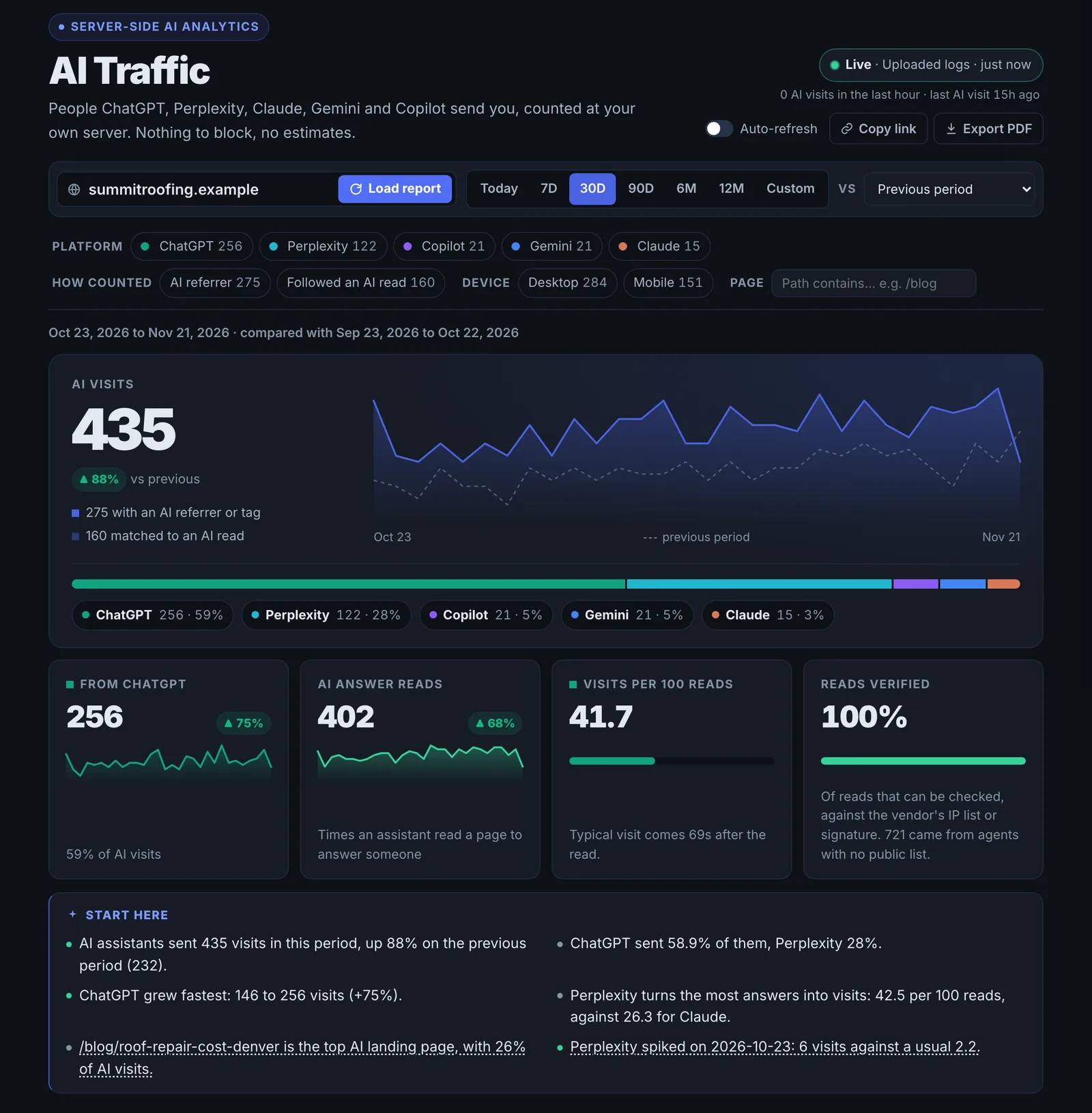
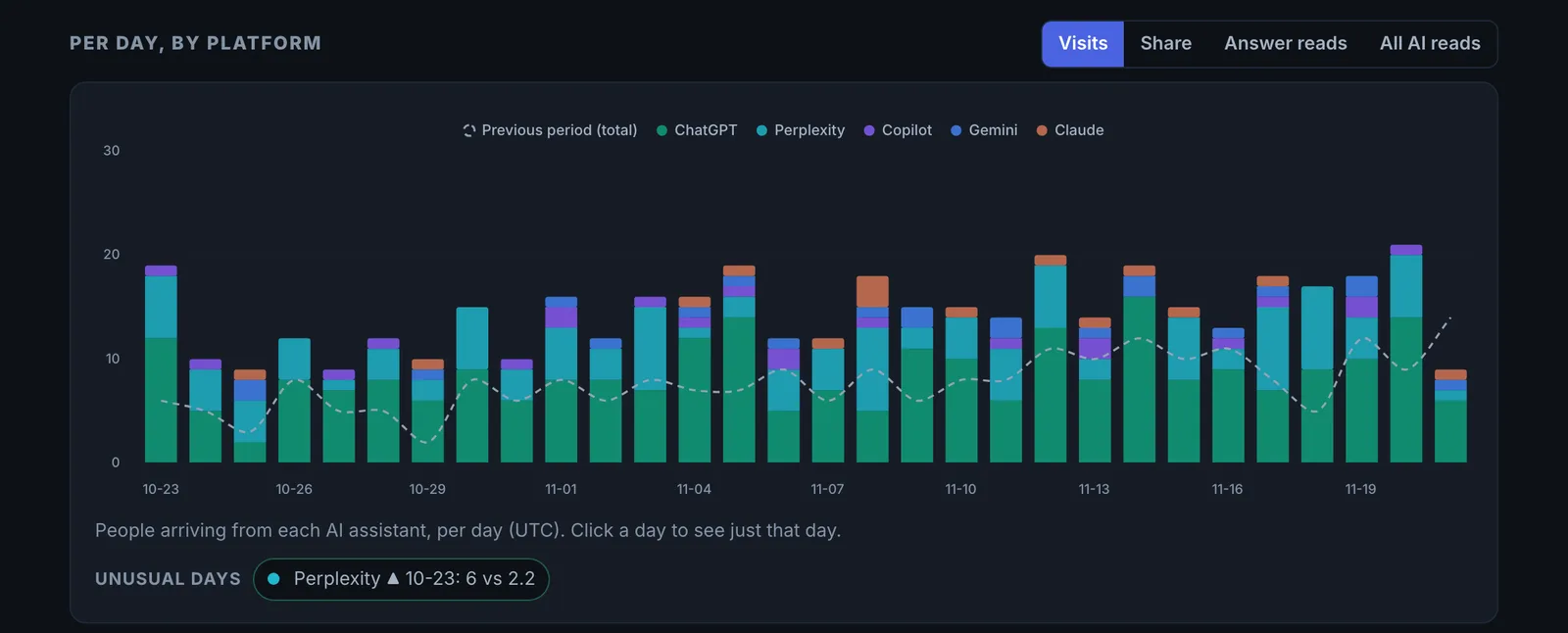
Check AI visits by assistant, answer reads, visits per 100 reads, and the daily charts.
- Compare #
Compare with the previous period or the previous year, and filter by assistant, device, country or page.
Why it matters#
Citations are a leading indicator. Traffic is the result. AI Traffic connects the two: how often assistants read your pages to answer someone, and how many of those people click through. It is the number that shows a business owner AI search is sending real visitors, and which pages earn them.
What it checks#
From the source you connect, every request is classified:
| Measure | What it is |
|---|---|
| AI visits | People arriving from an AI assistant (ChatGPT, Perplexity, Gemini, Copilot and others), by assistant |
| Answer reads | Assistants fetching a page to answer someone right now |
| Search index reads | AI search crawlers indexing your pages |
| Training reads | Crawlers collecting pages for model training |
| Visits per 100 reads | How many visits you get for each 100 answer reads: your click-through from AI answers |
| Matched to a read | Visits matched to the answer read that preceded them |
Where your site records orders, it also shows orders from AI visitors. Recorded site changes show answer reads and AI visits before and after each change.
Reading the results#
- Answer reads rising means assistants are using your pages more. Visits usually follow.
- Low visits per 100 reads means you are being read but not clicked: the answer may be complete without you, or your brand is not shown.
- Pages: which pages get read and visited. These are your AI-search assets.
- Training vs answering: heavy training reads with few answer reads means you are being collected but not used.
Implementing the fixes#
- Protect the pages that earn AI visits: keep them current and fast, and never move their content into JavaScript.
- Give readers a reason to click: original data, tools, calculators, pricing detail and examples an answer cannot fully reproduce.
- Decide your crawler policy: allow answer and search crawlers; block training crawlers only if you mean to, and know that blocking them can reduce how well models know you.
- Check before and after every change in the changes table to see what moved reads and visits.
Worked example#
A publisher connects the Cloudflare Worker.
After a month: 52,000 answer reads (assistants fetching pages to answer someone), 1,900 AI visits, so about 3.7 visits per 100 reads. One recipe page gets 9,000 reads and only 40 visits: the assistant gives the full recipe, so no one needs to click. A how-to page gets 2,000 reads and 300 visits, because the answer points to a tool on the page.
The change: the recipe page adds a nutrition calculator and printable shopping list that the answer cannot replace, and the publisher records the change. A month later, the before-and-after view shows visits per 100 reads on that page up from under 1 to 4, with reads unchanged.
Best practice#
Use the Cloudflare Worker if your site is behind Cloudflare. It sees every request, including cached pages that plugins and analytics miss.
Troubleshooting
No data after connecting #
Live sources report as requests arrive, so a quiet site may take hours to show anything. The page header shows which source is reporting and how recently. For the WordPress plugin, it must be version 1.8 or later. An uploaded log file is read at once.
The log file was already imported #
The app saysThis file was already imported for this site.
Each file is counted once, so the numbers are not doubled. Upload the next period's log instead.
You cannot add another log drain #
The app saysThis site already has 5 log drains. Revoke one first.
Each site takes up to 5 log drains. Revoke one you no longer use in the source list.
A teammate cannot change the sources #
The app saysViewers cannot change how this site reports. Ask the owner for the Editor role.
Viewers can read the report. The project owner makes them an Editor under Projects, then Team.
Part of an upload was not recorded #
The app saysPart of the file was not recorded. Try again in a minute.
Large logs are sent in chunks and one did not save. Start the upload again from the beginning.
Not listed here? See Common problems for limits, checks, plans and pages that cannot be read.
Questions
Is any of this estimated? #
What is an answer read? #
Why does Google Analytics show fewer AI visits? #
Can a teammate see it? #
Something here does not match what you see in the app? Tell us and we will fix the guide.