 Citerank
Issue Tracker: every site issue from open to verified
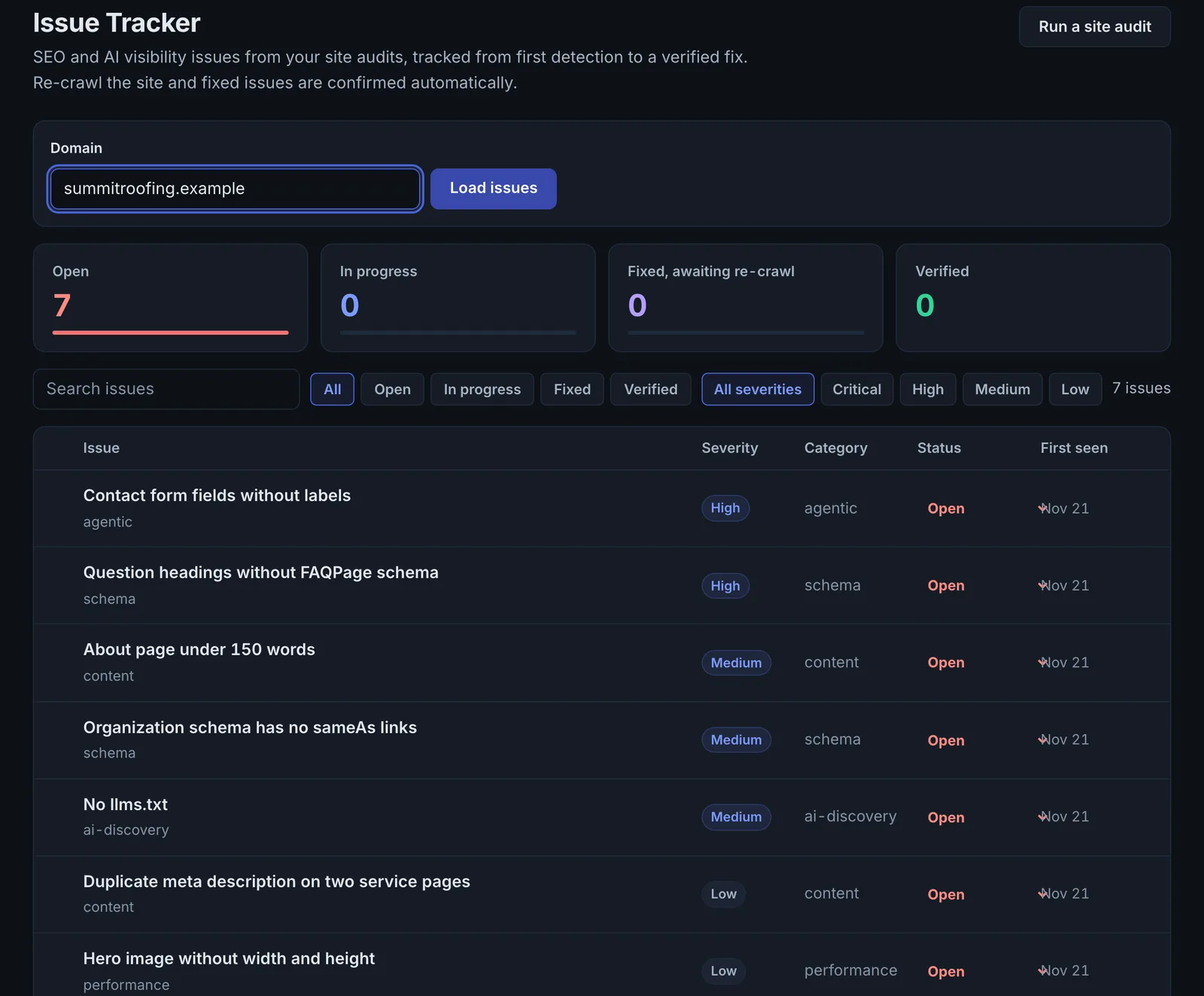
The Issue Tracker keeps every issue found on a domain in one list with a status: open, in progress, fixed or verified. Each crawl updates it, verifying issues that are gone and reopening fixed ones that return.
Step by step
- Crawl the site #
Run the Site Crawler on the domain. Its findings fill the tracker.
- Open Issue Tracker #
Find it under Site Audit in the left sidebar, enter the domain and click Load issues.
- Filter #
Filter by status and severity: Critical, High, Medium, Low.
- Update statuses #
Mark issues In progress when someone starts on them, and Fixed when the change is live.
- Let the next crawl verify #
The next full crawl marks fixed issues that are no longer detected as Verified, and reopens any that are still there.
Why it matters#
Audits produce lists. Lists get lost. The Issue Tracker turns crawl findings into a work queue with an audit trail, and closes the loop automatically: you do not have to trust that a fix worked, the next crawl proves it. For an agency it is also the record of what was fixed and when.
What it checks#
It does not scan by itself. It records every issue the Site Crawler finds on the domain (with title, severity, category and detail) and tracks it through four statuses: open, in progress, fixed, verified.
Reading the results#
- Critical and High open issues are the work for this week.
- Verified issues are proven fixed.
- Reopened issues (fixed, then detected again) point at fixes that did not reach the live site, were overwritten by a theme or plugin update, or are cached.
Implementing the fixes#
- Work Critical, then High, by category, so one template or setting fix clears many issues at once.
- Mark issues In progress so a team does not duplicate work.
- Mark Fixed when the change is live, clear any page cache, then run a crawl.
- Investigate anything that reopens before moving on.
Worked example#
After a crawl, a site has 46 open issues: 4 Critical, 11 High.
- The 4 Critical issues are one cause: the
noindextag left on four landing pages after a launch. One theme setting fixes all four. They are marked In progress, the setting is changed, and they are marked Fixed. - Of the 11 High issues, 9 are "missing meta description" on the same template. One template change fixes all nine.
Next crawl: 13 issues move to Verified. Two High issues reopen: the descriptions are back to blank on two pages. The cause turns out to be an SEO plugin overriding the template on pages where its own field is empty. Filling those two fields clears them on the following crawl. The tracker now shows when each fix was made and confirmed, which is the record the client sees.
Best practice#
Pair it with Scheduled Crawls so verification happens without anyone remembering to re-crawl.
Troubleshooting
You cannot change an issue's status #
The app saysYou have view access to this shared project. Ask its owner for editor access to change issue statuses.
Viewers on a shared project can read issues but not change them. Ask the project owner to make you an Editor under Projects, then Team. See Team seats.
An issue stays Fixed and never becomes Verified #
Verified is set only by a later full crawl of the site. Run a crawl, or set up Scheduled Crawls so it happens on its own.
A fixed issue keeps reopening #
The next crawl still found it on the live site. The usual causes: the change was made in staging, a cache is serving the old page, or a theme or plugin update overwrote it. Check the page in a private window before marking it Fixed again.
The tracker is empty #
It fills from Site Crawler runs on the domain. Run a crawl of the site first. Single-page audits do not create tracked issues.
Not listed here? See Common problems for limits, checks, plans and pages that cannot be read.
Questions
What is the difference between Fixed and Verified? #
Why did a fixed issue reopen? #
Do teammates' crawls update it? #
Something here does not match what you see in the app? Tell us and we will fix the guide.