 Citerank
Embed Score Badge: show your AI visibility score
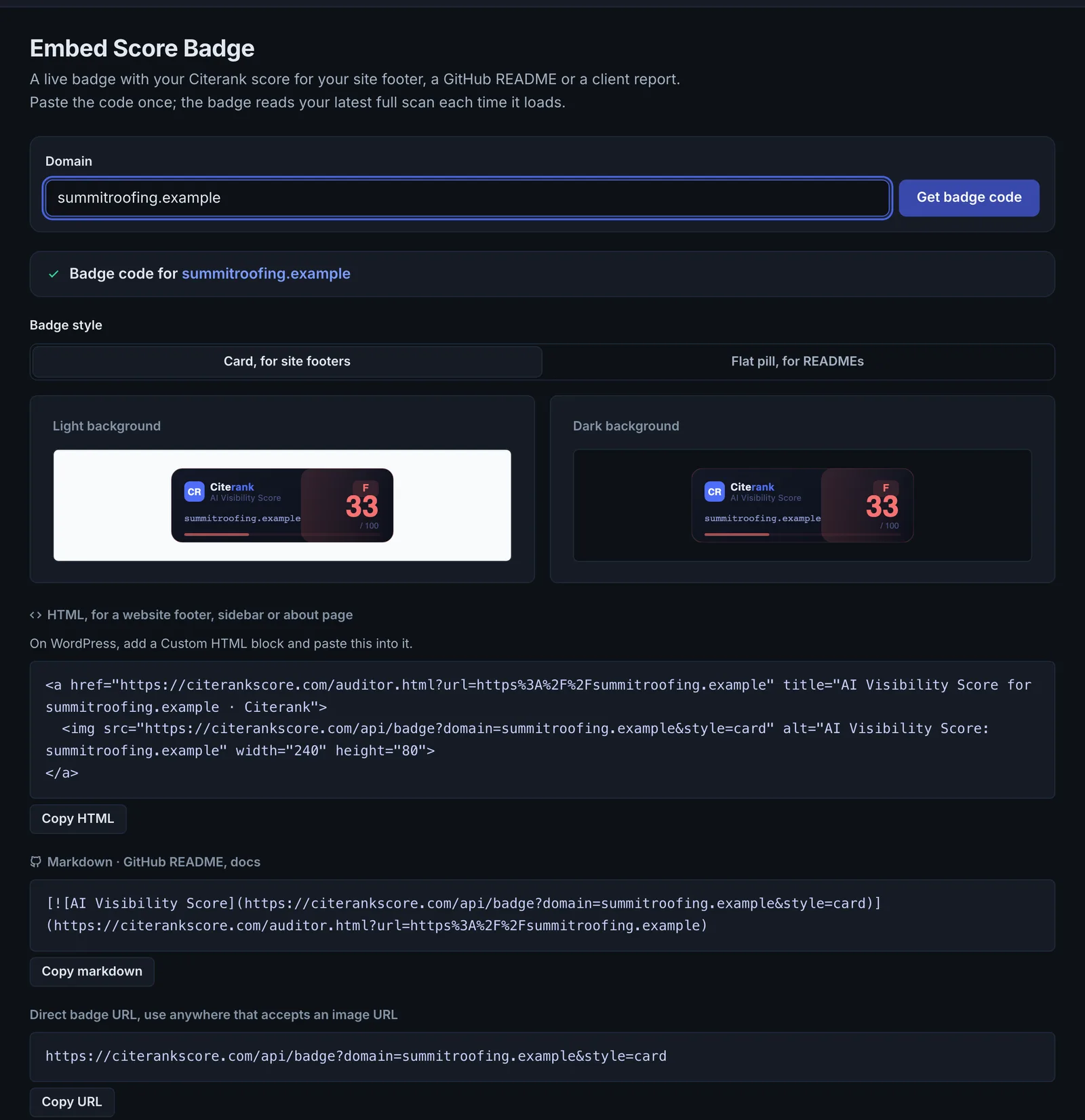
Embed Score Badge gives you a small badge showing a domain's AI visibility score, with the code to embed it on a website, in a README or in client reports.
Step by step
- Open Embed Score Badge #
Find it under Plan & Deploy, Deploy, in the left sidebar.
- Enter a domain #
The badge is generated for it.
- Copy the code #
Copy the embed code for HTML or Markdown.
- Paste it #
Add it to your site, README or report.
Why it matters#
A visible score is a simple proof point: agencies put it in client reports and footers, and brands show they take AI visibility seriously.
What it checks#
The score, grade and domain from your latest full scan of the domain, rendered as a badge.
Reading the results#
Two styles: a flat pill for READMEs and a card for site footers, each on a light or dark background. The badge is kept current: each new full scan (including a project's weekly scan) updates it. A quick scan updates your dashboard but not the badge, so the two can differ until the next full scan.
Implementing the fixes#
- Run a full scan on the domain first; the badge shows the score from that scan.
- Copy the HTML or Markdown, or use the direct badge URL anywhere that accepts an image.
- On WordPress, add a Custom HTML block and paste the code into it.
Worked example#
An SEO agency adds the card badge to its own site footer, dark background.
The badge shows its AI Visibility Score of 78 from the latest full scan. After the agency fixes its sitemap and re-runs a full scan, the badge updates to 83 on its own. A quick scan the agency ran in between updated its dashboard but not the badge, which is why the two briefly showed different numbers.
Best practice#
Put the card in a client site's footer only if the client is comfortable with the score being public.
Troubleshooting
The badge shows an old score #
The badge updates on full scans only. Run a full AI Visibility Score scan (or let a project's weekly scan run).
The badge shows no score #
The domain has no full scan yet. Run one, then reload the page with the badge.
The badge does not appear on your site #
Your site builder may strip the embed code. Paste it into a field for custom HTML or code, not a text block.
Not listed here? See Common problems for limits, checks, plans and pages that cannot be read.
Questions
Does the badge update? #
Why does the badge show a different score from my dashboard? #
Can I choose which score it shows? #
Something here does not match what you see in the app? Tell us and we will fix the guide.