 Citerank
Schema Monitor: be told when structured data breaks
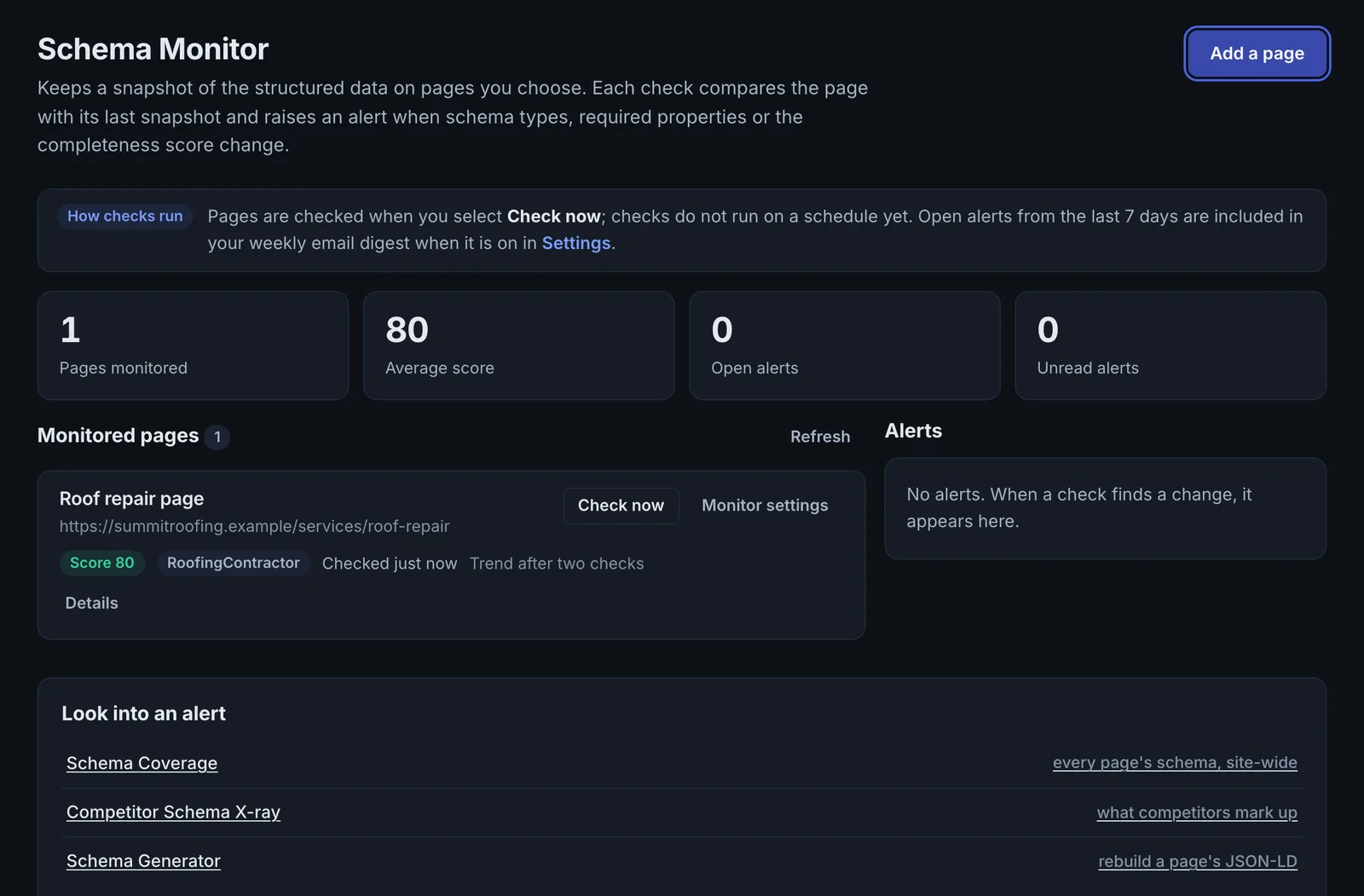
Schema Monitor snapshots the structured data on the pages you choose and raises an alert when it disappears, changes type, loses a required property or drops in score. Check pages whenever you like; open alerts are included in your weekly email digest.
Step by step
- Open Schema Monitor #
Find it under Schema & Entities, Coverage, in the left sidebar.
- Monitor a page #
Enter a page URL and an optional name.
- Choose the alerts #
Alert when the score drops by a set number of points, a required property goes missing, the schema types change, or schema appears where there was none.
- Check now #
Run a check to take a snapshot. Checks run when you select Check now.
- Handle alerts #
Look into each alert, fix the cause, and resolve it.
Why it matters#
Schema breaks silently. Nothing on the page looks different when a plugin update removes your Organization markup, and you only notice when rich results or citations fall away. A snapshot of the markup you rely on, with alerts on change, catches it.
What it checks#
For each monitored page: the schema types present, required properties, and an overall score, compared with the previous snapshot. Alerts fire on the conditions you choose.
Reading the results#
- Types changed: something replaced or removed a block.
- Required property missing: the markup still exists but no longer qualifies.
- Score drop: completeness fell.
- Schema appears: new markup was added, intended or not.
Implementing the fixes#
- Find what changed on the site (a plugin or theme update, a template edit).
- Restore the markup, or regenerate it with the Schema Generator.
- Check now to confirm, and resolve the alert.
Worked example#
An agency monitors the schema on 10 key pages for a client: home, 6 service pages and 3 location pages.
After a theme update, Check now raises two alerts: "Schema markup has been removed from the page" on all 3 location pages, and a score drop on the home page. The new theme dropped the template section that printed the location schema. The developer restores it the same day. The next check clears the alerts, and the client's weekly digest shows the alert opened and closed.
Best practice#
Monitor your home page, top service or product pages and any page with review or FAQ markup, and check them after every site update.
Troubleshooting
Alerts are not arriving by email #
Alerts go into your weekly email digest when the digest is turned on in Settings. Turn it on. Open alerts from the last 7 days are included.
Nothing changed since you added a page #
Pages are checked when you select Check now, not on a timer. Check pages after every site release or theme update.
Not listed here? See Common problems for limits, checks, plans and pages that cannot be read.
Questions
Does it check automatically? #
Why would schema disappear? #
How many pages should I monitor? #
Something here does not match what you see in the app? Tell us and we will fix the guide.