 Citerank
Speakable Validator: check your Speakable schema selects the right text
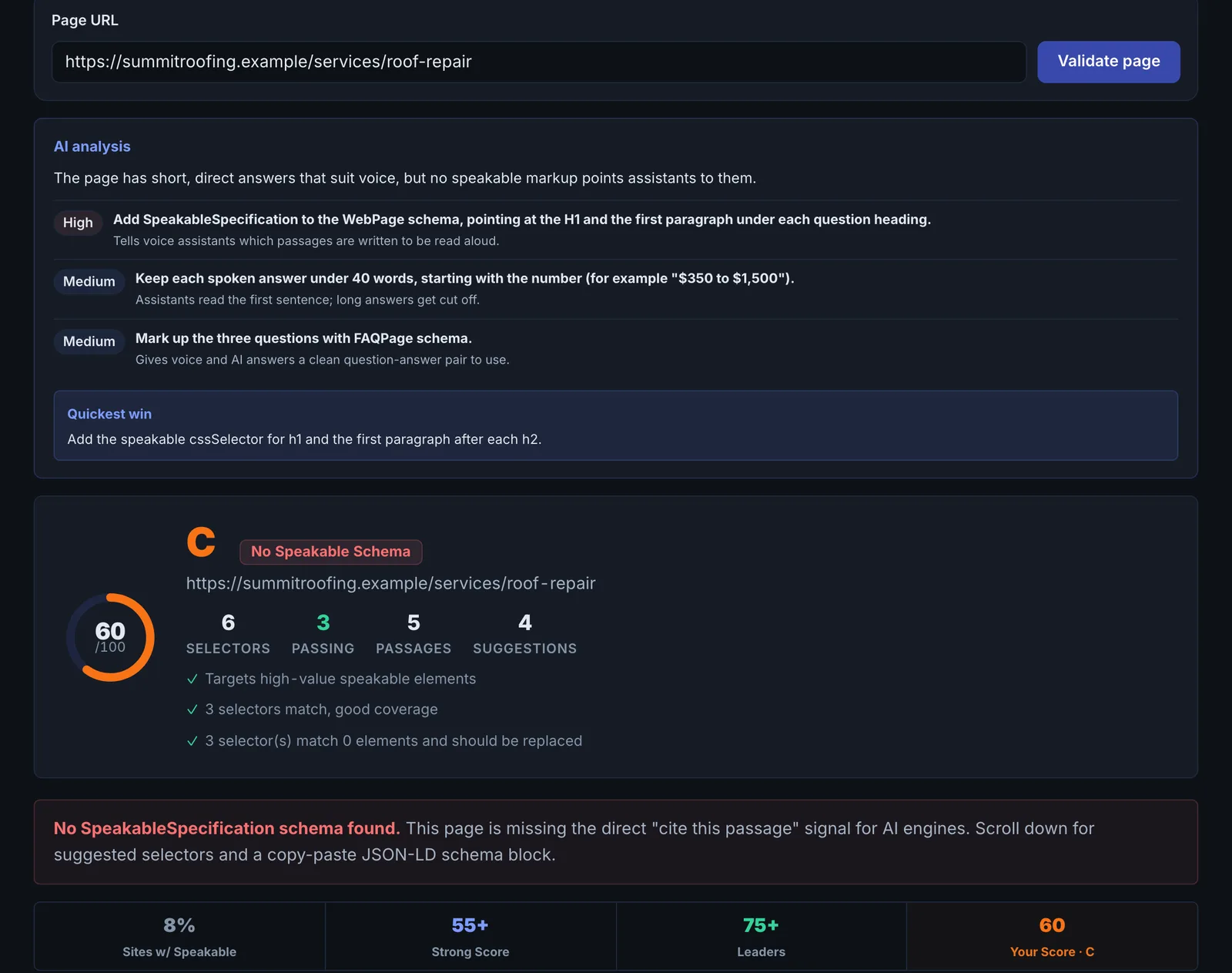
The Speakable Validator reads the Speakable schema on a page and tests its CSS selectors against the live HTML, showing what each selector matches, scoring whether it targets the right content, and suggesting better selectors.
Step by step
- Open Speakable Validator #
Find it under Site Audit, AI Access, in the left sidebar.
- Enter a page URL #
Paste the full URL of a page that has, or should have, Speakable schema.
- Validate #
Each selector in the schema is tested against the live HTML.
- Read the matches #
See how many elements each selector matched and a preview of the text.
- Use the suggestions #
If a selector matches nothing or the wrong text, use the suggested selectors and update your schema.
Why it matters#
Speakable schema points AI and voice assistants at your best answer passage. A selector that matches nothing, or matches the cookie banner, is worse than none. Selectors break silently when templates change, and no standard validator tests them against the live page. This one does.
What it checks#
- The SpeakableSpecification on the page and each CSS selector in it.
- Matches: how many elements each selector matches on the live HTML, with a text preview.
- Quality: whether the targets are high-value content (the H1, the article or main content, a summary) and whether several selectors pass.
- Suggestions: content containers found on the page that would make better selectors.
Reading the results#
- 0 matches: the selector is broken.
- Too many matches: the selector is too broad (for example p), so the "speakable" part is the whole page.
- Matches boilerplate: navigation, footers or banners are targeted instead of the answer.
Implementing the fixes#
- Add a dedicated class to your answer summary in the template, for example class="speakable-summary".
- Point the Speakable cssSelector at that class and the H1.
- Keep the targeted text short: a headline and a two or three sentence summary.
- Re-validate after any template change.
Worked example#
A news site's article template declares Speakable with cssSelector: ["p"].
The validator reports too many matches: 38 elements, including the cookie banner and the footer. The selector marks the whole page as the part to read aloud, so it marks nothing useful.
The fix: the template wraps the article's two-sentence standfirst in <p class="speakable-summary">, and the schema becomes cssSelector: ["h1", ".speakable-summary"]. Re-validation: 2 matches, both the headline and summary, with no boilerplate.
Best practice#
Generate the markup with the AI Overview Tracker (Copy Schema) and validate it here.
Troubleshooting
The page cannot be reached #
The app saysCould not reach that page. Check the domain is spelled correctly and is publicly accessible.
Check the address in a browser. The validator reads public pages only.
The page blocked the request #
The app saysThat page blocked our request. It may require a login or be behind a firewall.
Allow CiterankBot in the site's firewall, or validate a public page that uses the same template.
Some selectors match too many elements #
The app saysSome selectors match too many elements, consider more specific selectors
A broad selector such as p or div marks most of the page. Add a dedicated class to the summary in your template and point the selector at it.
The page returned 404 #
The app saysThat page returned 404. Check the URL is correct.
The URL is wrong or the page was removed. Copy the live address from the browser.
Not listed here? See Common problems for limits, checks, plans and pages that cannot be read.
Questions
What is Speakable schema? #
Why would a selector match nothing? #
Where does the Speakable markup go? #
Something here does not match what you see in the app? Tell us and we will fix the guide.