 Citerank
Bulk Schema Generator: entity-linked schema for many pages at once
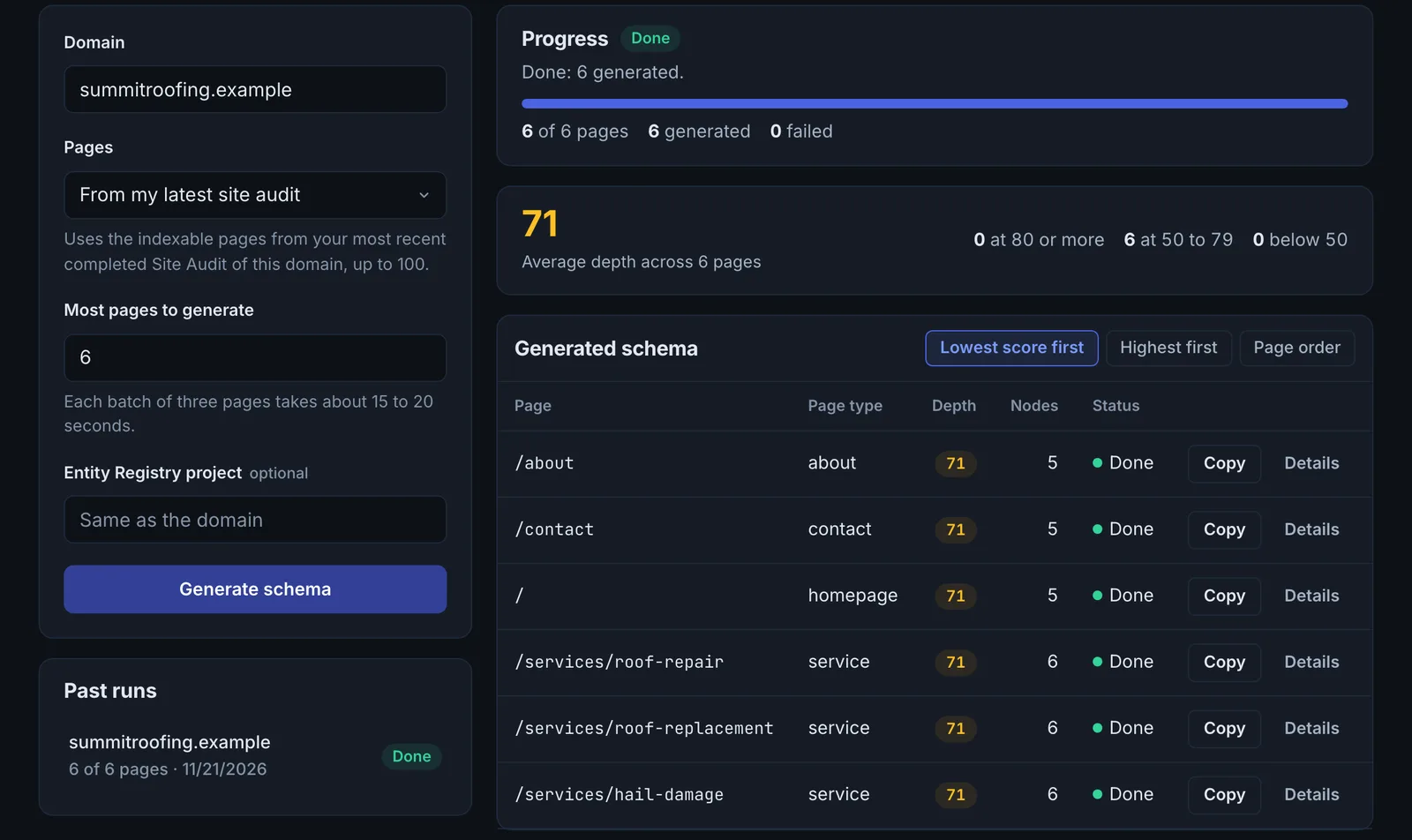
The Bulk Schema Generator writes JSON-LD for many pages in one job, from a domain, a previous crawl or a list of URLs. An optional Entity Registry project keeps the same @id for the same entity on every page, and each graph gets a depth check.
Step by step
- Open Bulk Schema Generator #
Find it under Schema & Entities, Generate, in the left sidebar.
- Choose the pages #
Enter a domain, use the pages from a crawl, or paste URLs one per line, and set the most pages to generate.
- Pick an Entity Registry project #
Optional but recommended, so your Organization, people and services keep the same @id site-wide.
- Start the job #
Pages are processed in batches; watch the progress.
- Review and publish #
Check each generated graph and its depth, then add it to the pages or deploy it.
Why it matters#
Schema on one page helps that page. Consistent, connected schema across the whole site tells engines one coherent story about who you are and what you offer. Doing that by hand for dozens of pages is where most sites give up; this does it as one job.
What it checks#
- Each page's content, read from the main or article body.
- Your Entity Registry (if chosen), so shared entities reuse the same @id.
- A generated @graph per page in the same pattern as the Schema Generator.
- Depth of each graph, and the average depth over time across runs.
Reading the results#
- Generated schema per page, ready to copy.
- Average depth over time: higher means better-connected graphs.
- Since your last run: what changed.
Implementing the fixes#
- Set up the Entity Registry first with your Organization, key people and services.
- Run the job on one section (for example services) and review a few pages carefully.
- Publish through your CMS templates or deploy, then check with Schema Coverage.
- Run the rest of the site.
Worked example#
A dental group with 12 location pages runs a bulk job from its latest crawl, using its Entity Registry.
Each location page gets a Dentist node with its own address and hours, linked by parentOrganization to the one Organization @id in the registry, https://example-dental.com/#org. Before, each page's plugin output declared the organisation separately, with three spellings of the name. Average depth rises from 1.4 to 3.1 across runs, because every page now connects location, organisation, services and web page in one graph. The schema is pasted per page, and Schema Coverage confirms all 12 pages.
Best practice#
Start from a crawl so the page list matches what crawlers find, and keep the registry current when you add services or staff.
Troubleshooting
No completed crawl was found #
The app saysNo completed crawl found for this domain. Run a site crawl first or paste URLs manually.
Run the Site Crawler on the domain, or paste the URLs you want instead.
Some pages failed #
The app saysCould not fetch page
Those pages blocked the request or did not respond. The rest of the job finishes. Allow CiterankBot and run the failed URLs again.
The same entity has different @ids across pages #
Choose your Entity Registry when starting the job, so shared entities reuse one @id. Add any missing entity to the registry first.
Not listed here? See Common problems for limits, checks, plans and pages that cannot be read.
Questions
Why does a consistent @id matter? #
What is the depth check? #
When are credits charged? #
Something here does not match what you see in the app? Tell us and we will fix the guide.