 Citerank
Product Feed Audit: is your catalogue agent-ready?
Product Feed Audit reads your catalogue from the store or a Google Merchant, RSS or JSON feed and checks each product for the facts AI shopping agents need to choose it: identifiers like GTIN, price, availability, shipping and returns. Gaps are ranked by what they cost you.
Step by step
- Open Product Feed Audit #
Find it under Agents & Commerce, Commerce, in the left sidebar.
- Enter your store URL #
Optionally add your product feed URL (Google Merchant, RSS or JSON).
- Run it #
Products are read and each checked.
- Read the verdicts #
See a verdict per product and the catalogue-level gaps.
- Fill the gaps #
Start with the gaps ranked highest.
Why it matters#
An agent choosing between stores compares facts. A product missing its GTIN, shipping cost or return policy loses to one that has them, or is left out entirely. This audit shows which facts your catalogue lacks.
What it checks#
For each product: identifiers (GTIN and similar), price, availability, shipping and returns, plus the catalogue-level gaps, ranked by how much agents lose without each fact.
Reading the results#
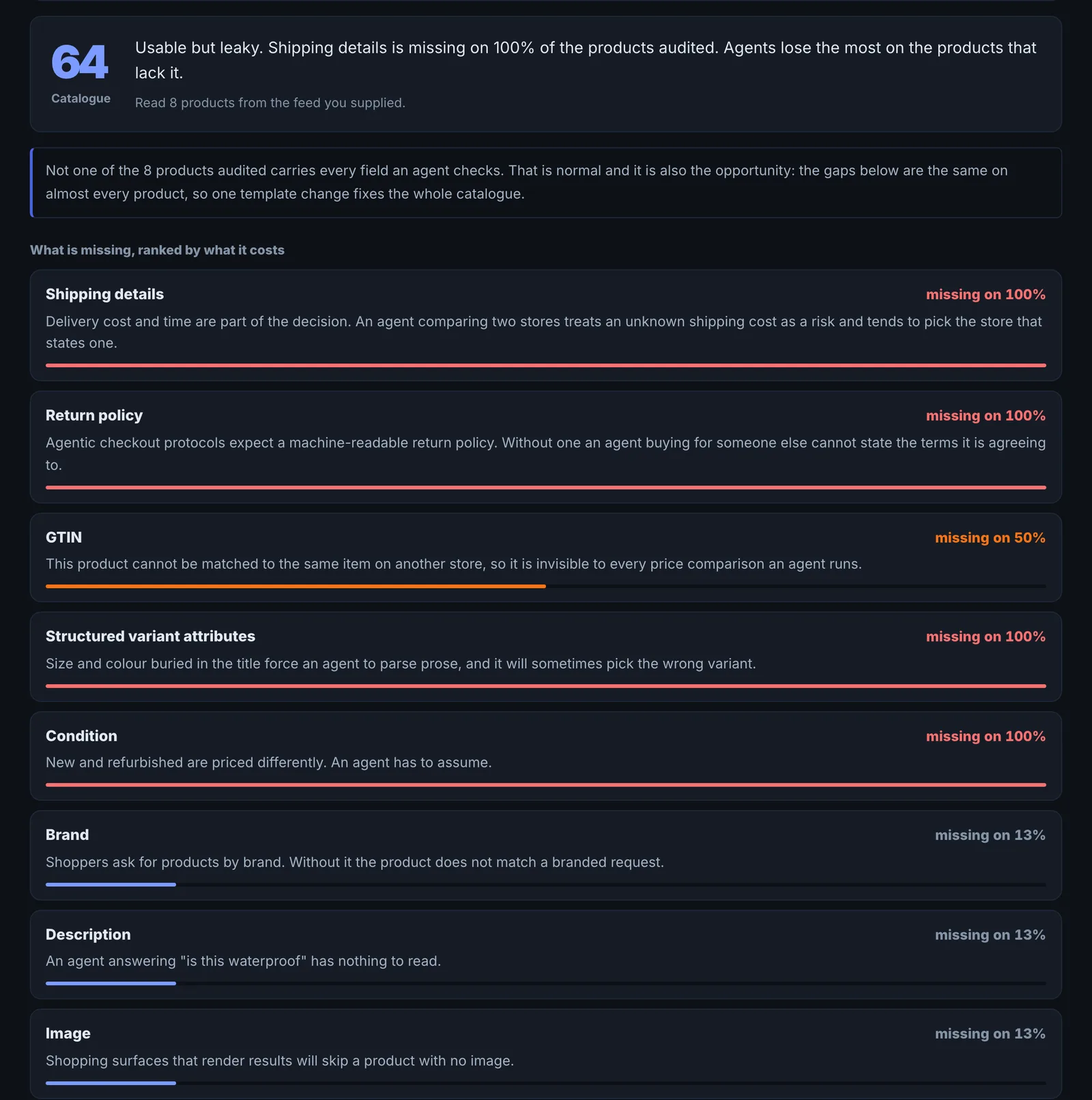
- Catalogue-level gaps are usually template or feed settings, fixable once.
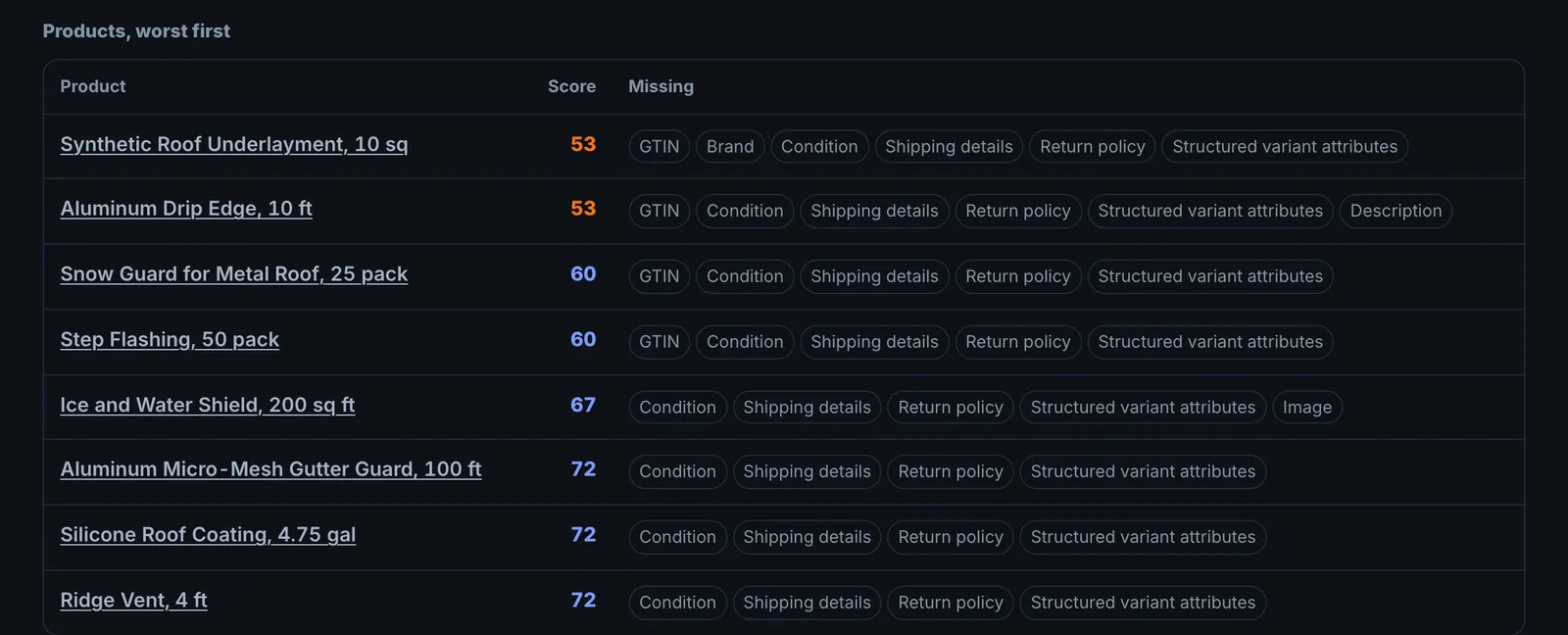
- Per-product verdicts find individual listings with missing data.
Implementing the fixes#
- Add GTINs (or MPN and brand) to every product.
- Publish shipping and return details in Product schema (shippingDetails, hasMerchantReturnPolicy) and in your feed.
- Keep price and availability in schema in sync with the page.
- Submit a Google Merchant feed if you do not have one.
Worked example#
A cosmetics brand audits its Shopify store's catalogue of 120 products.
Catalogue-level gaps: 0 of 120 products have a GTIN, shipping cost is missing on all, and the return policy is only in a PDF. Per-product verdicts: 14 products show a price in the page but none in structured data, all from one collection with a custom template.
The fixes: GTINs entered in the product admin (from the brand's barcode registry), shipping rates added to the store's structured data app, the return policy published as a page, and the custom template fixed. Re-audit: every catalogue-level gap closed.
Best practice#
Audit the feed you actually submit to Google Merchant Center, not only the site.
Troubleshooting
The catalogue could not be read #
The app saysThe catalogue could not be read:
The feed URL or store did not return product data. Check the feed loads in a browser, or enter the store's address instead of the feed.
The feed or store address could not be used #
The app sayscould not be used:
The message gives the reason. Usually the address needs a login, is not a product feed, or is blocked by a firewall.
Products show missing GTINs that do not have one #
Handmade and own-brand products often have no GTIN. Mark them as such in your feed (for Google, identifier_exists: no) and give a brand and MPN where you have them.
Not listed here? See Common problems for limits, checks, plans and pages that cannot be read.
Questions
Why does GTIN matter? #
Should I give it my feed URL or my store? #
Does it change my feed? #
Something here does not match what you see in the app? Tell us and we will fix the guide.