 Citerank
Authenticity Checker: detect AI provenance in files and text
The Authenticity Checker detects machine-verifiable signs of AI generation: C2PA signed provenance and AI source tags in images and files (with the tool that made them), and hidden zero-width markers in text. It is free and needs no sign-in.
Step by step
- Open Authenticity Checker #
Find it under Site Audit, AI Access, in the left sidebar, or open it without signing in.
- Add a file or paste text #
Upload an image or file, or paste text.
- Check it #
It looks for signed provenance, AI source tags and hidden markers.
- Read the result #
See whether provenance was found, which tool or issuer created the file, and what could not be checked.
Why it matters#
Platforms and search engines increasingly read provenance data, and clients ask whether content was AI-generated. Guesswork detectors produce false accusations. This tool reports only what can be verified: signed provenance and explicit markers. It is useful before you publish images, and for checking content you receive.
What it checks#
- Images and files: C2PA signed provenance (as attached by many AI image tools) and XMP/IPTC "digital source type" AI tags, with the claim generator or issuer named where present.
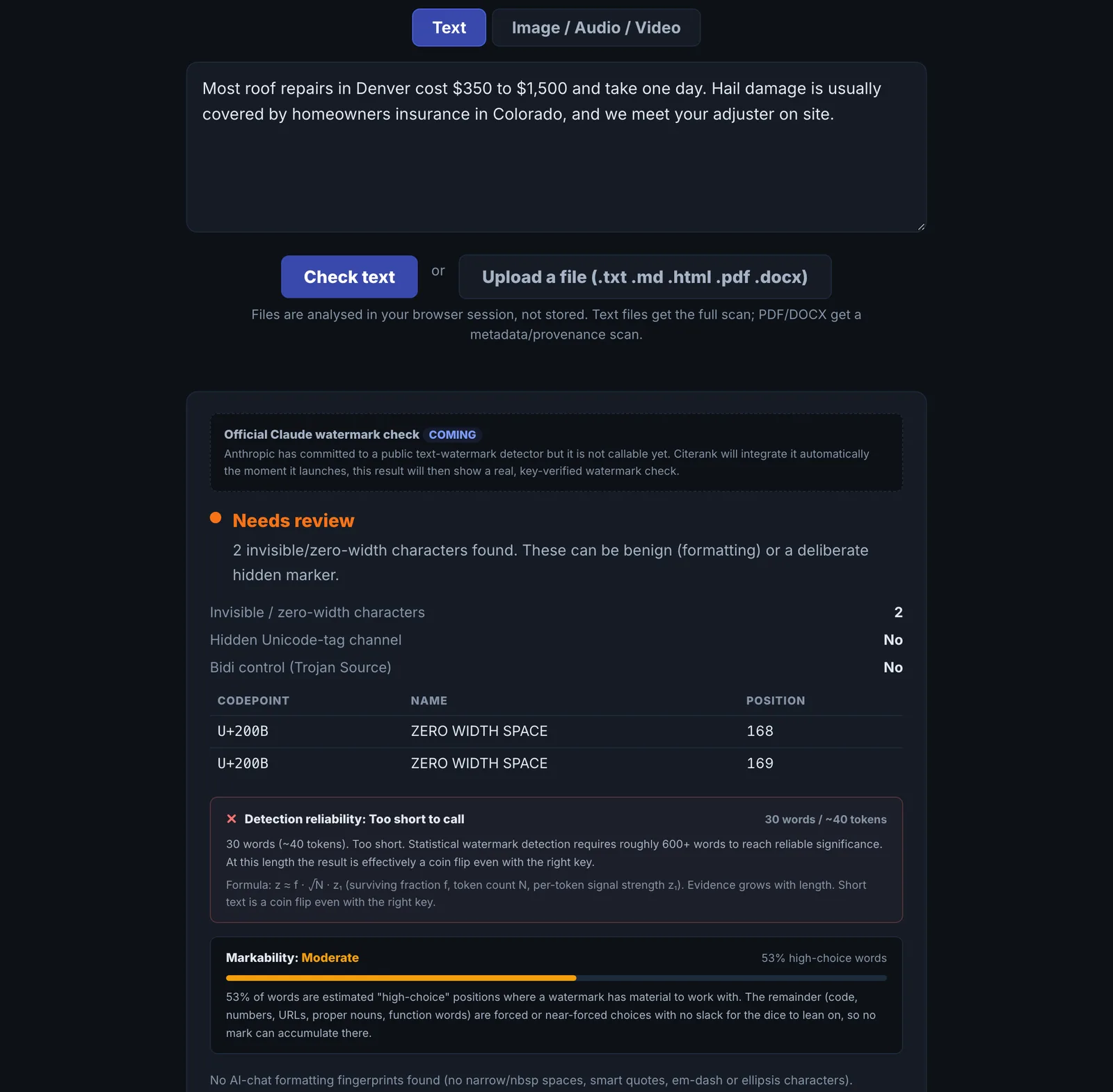
- Text: invisible and zero-width Unicode markers, and embedded provenance.
- What it cannot check is stated plainly: there is no public detector for statistical text watermarks yet.
Reading the results#
- Signed provenance found: definitive. The file says how it was made and by which tool.
- AI source tag found: the file is labelled as AI-generated in its metadata.
- Hidden markers in text: invisible characters were found. Remove them before publishing; they can break formatting and search snippets.
- Nothing found: no verifiable marker, which does not prove a human made it.
Implementing the fixes#
- Strip hidden characters from text before publishing.
- For AI images you publish, keep the provenance if your policy is transparency, and label them on the page where relevant.
- Do not rely on the absence of markers as proof of human authorship.
Worked example#
A marketing team checks an image a freelancer delivered as an original photograph.
The checker finds signed provenance (Content Credentials) naming an AI image tool and the date the image was generated. That is definitive: the file records how it was made. The team asks the freelancer for the original photo, and updates its brief to require disclosure of AI tools.
The same team then pastes a blog draft into the text check. It finds hidden characters: zero-width spaces between some words, left by a writing tool. They are removed before publishing, because they can break search snippets and copy-paste.
Best practice#
Use it in your editorial checklist for images and for text pasted from AI tools.
Troubleshooting
The file is too large #
The app saysFile too large (max 12 MB).
Upload a smaller copy, or check the image by URL. Resizing in some editors removes the metadata the check looks for, so prefer the original file if you can get it under 12 MB.
The image URL could not be fetched #
The app saysCould not fetch that image URL.
The image is behind a login, or the site blocks downloads. Download the file and upload it instead.
Nothing was found on an image you know is AI #
Many tools and platforms strip metadata when an image is edited, screenshotted or uploaded to social media. No marker means nothing verifiable was found, not that a person made it.
Not listed here? See Common problems for limits, checks, plans and pages that cannot be read.
Questions
Can it tell me whether text was written by AI? #
What is C2PA? #
Does the checker keep my files? #
Something here does not match what you see in the app? Tell us and we will fix the guide.