 Citerank
Scheduled Crawls: re-crawl a site automatically
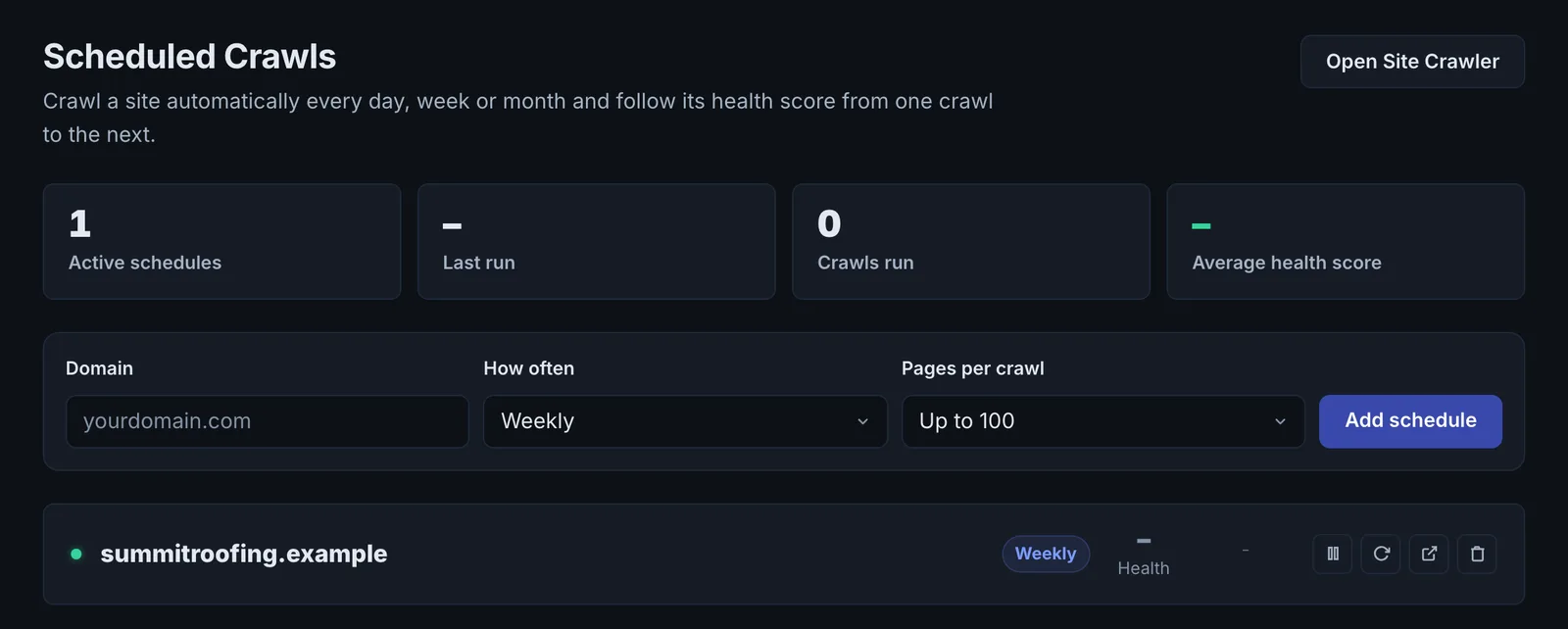
Scheduled Crawls runs the Site Crawler on a domain daily, weekly or monthly, with the number of pages you choose. Each run updates the Issue Tracker, which verifies fixes and reopens regressions.
Step by step
- Open Scheduled Crawls #
Find it under Site Audit in the left sidebar.
- Add a schedule #
Enter the domain, choose how often (daily, weekly or monthly) and the pages per crawl, then Add schedule.
- Pause or remove it #
Toggle a schedule off to pause it, or delete it.
- Check the results #
Each run appears in the Site Crawler's recent crawls and updates the Issue Tracker.
Why it matters#
Sites regress. A plugin update blocks a crawler, a redesign drops schema, a developer adds noindex to staging and it ships. Scheduled crawls catch these within days instead of when traffic drops.
What it checks#
A scheduled crawl is a normal Site Crawler run, on a timer. Each schedule has a domain, a frequency (daily, weekly or monthly) and a page limit.
Reading the results#
Results appear in the Site Crawler like any crawl. The useful view is the Issue Tracker: new issues since the last run, issues verified fixed, and issues reopened.
Implementing the fixes#
Treat a newly opened Critical issue from a scheduled crawl as an alert: find what changed on the site (deploy logs, plugin updates, a project note) and roll it back or fix it.
Worked example#
An agency adds a monthly schedule, 200 pages, for each of its client sites.
In March, one client's scheduled crawl opens 30 new Critical issues overnight: every page now returns noindex. The site's project notes show a theme update was applied the day before. The developer finds the update reset a "discourage search engines" setting, switches it back, and the client is told within a day instead of when traffic falls. The next manual crawl moves all 30 issues to Verified in the Issue Tracker.
Best practice#
Set a monthly schedule for every client site, and switch to weekly around launches and migrations.
Troubleshooting
A schedule ran but you want more pages #
Each schedule has its own page limit, from 10 to 500 pages. Edit the schedule to raise it, or run a manual Site Crawler crawl for up to 1,000 pages.
Adding a schedule changed an existing one #
Each domain has one schedule per account. Saving a schedule for a domain that already has one updates that schedule's frequency and page limit, rather than adding a second.
A scheduled crawl finished with very few pages #
The site blocked the crawler, or its links are built by JavaScript. Run a manual crawl to see what happened, allow CiterankBot in the site's firewall, or switch the crawl to sitemap mode.
You want to stop a schedule without losing it #
Pause it. A paused schedule keeps its settings and history, and can be resumed at any time.
Not listed here? See Common problems for limits, checks, plans and pages that cannot be read.
Questions
How often should I crawl? #
Does a scheduled crawl count toward my crawls? #
What is the page limit on a scheduled crawl? #
Something here does not match what you see in the app? Tell us and we will fix the guide.