 Citerank
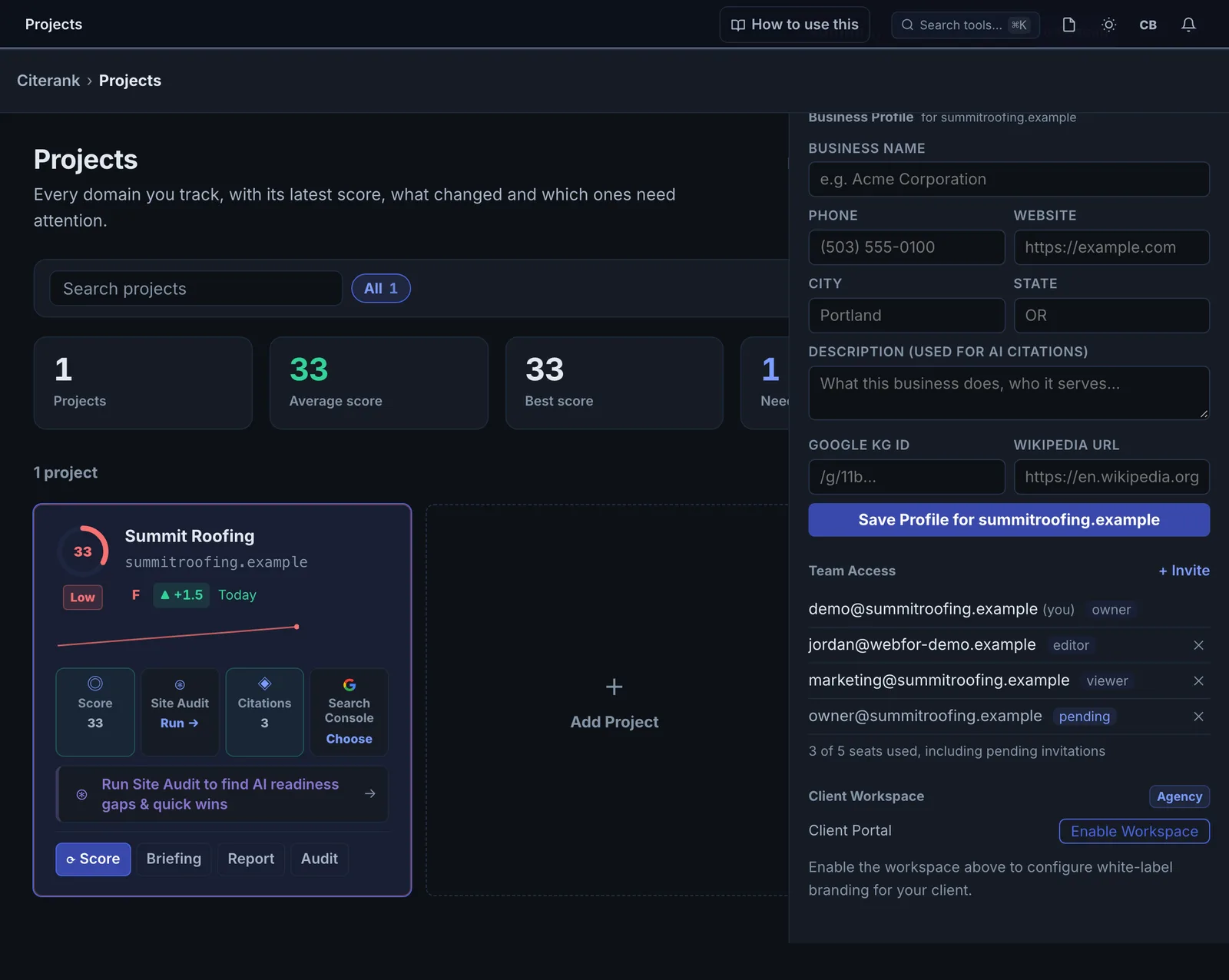
Team seats: share a project with your team
On the Agency plan you can invite up to 5 people to each project. They see the project's full history and run tools on its domain under your plan, so they do not need a paid plan of their own.
Step by step
- Open the project #
Go to Projects and click the project you want to share.
- Find Team Access #
In the project panel, find the Team Access section and click + Invite.
- Enter their email #
Type the email address of the person you are inviting.
- Choose a role #
Choose Editor to let them change the project's notes, competitors and agent settings, or Viewer to let them read and run tools only.
- They accept #
They get an invitation, sign in or create a free account, and the project appears on their Projects page. Pending invites show in Team Access, where you can revoke them.
Roles#
| Viewer | Editor | Owner | |
|---|---|---|---|
| See the project and its history | Yes | Yes | Yes |
| Run tools on the project's domain | Yes | Yes | Yes |
| Change notes, competitors and agent settings | No | Yes | Yes |
| Invite or remove members | No | No | Yes |
| Delete the project | No | No | Yes |
How the plan works for teammates#
A seat gives access to a client's site, not a free Agency account. When a teammate runs a tool on the shared project's domain, the run uses your plan and counts against your checks and credits. When they run a tool on any other domain, they are on their own plan.
Delegating well#
- Give contractors and clients Viewer access. They can run audits and read results without changing your setup.
- Give the people who do the work Editor access, so they can keep notes and competitors current.
- Since teammate runs use your checks, agree up front who runs the engine tools (Citation Tracker, Prompt Tracking "check now"). Audits are free, so anyone can run those.
Questions
Does my teammate need a paid plan? #
Whose checks does a teammate use? #
Can a teammate delete the project? #
Is the 5-seat limit per account or per project? #
Something here does not match what you see in the app? Tell us and we will fix the guide.