 Citerank
AI Visibility Plan: a 30-day plan from your audit results
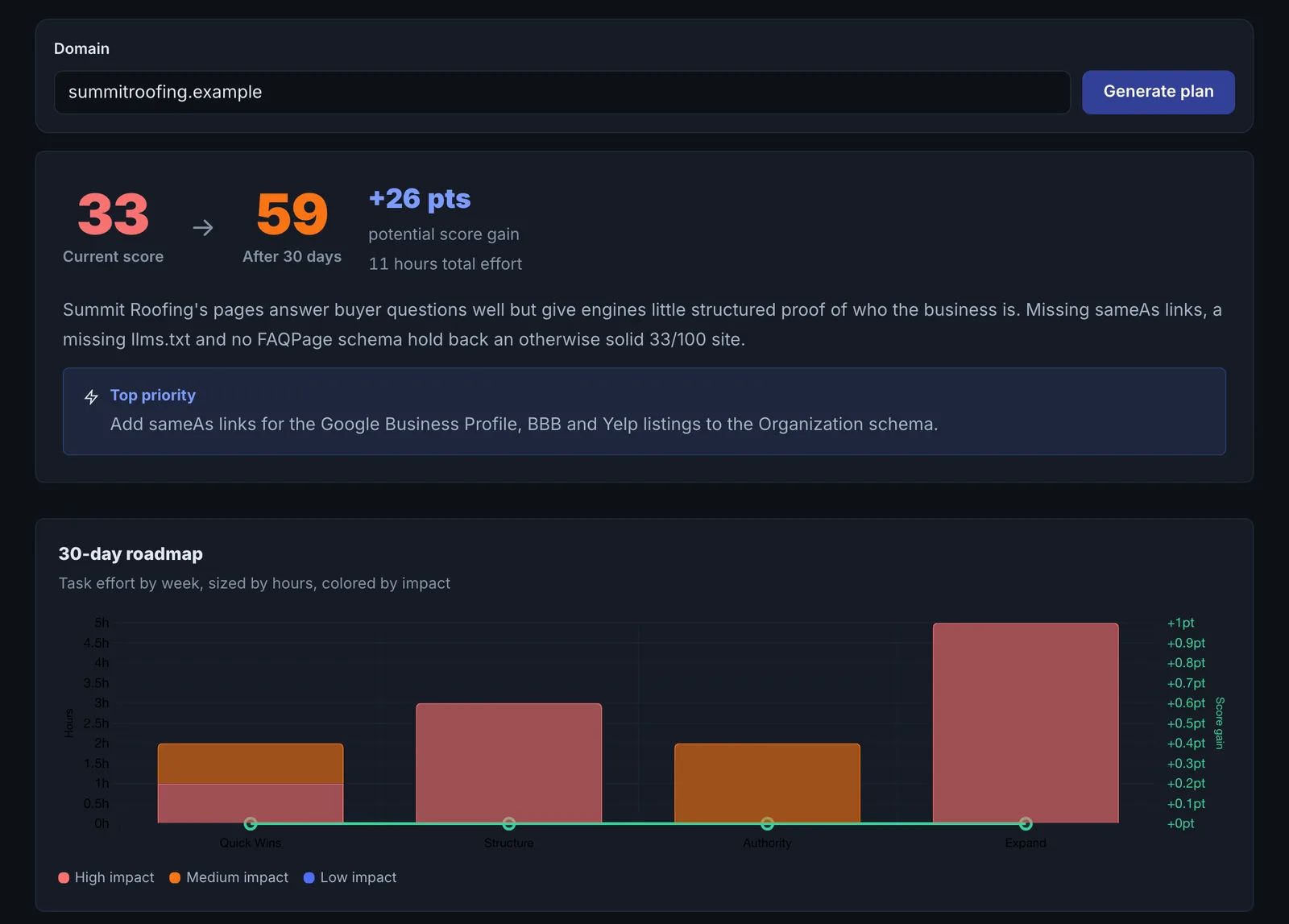
The AI Visibility Plan reads your latest audit results for a domain and generates a personalised 30-day plan: weekly tasks with estimated score gains and effort, copy-paste fixes, a summary and your single top priority.
Step by step
- Audit first #
Run the Page Auditor on the domain so the plan has real findings to work from.
- Open AI Visibility Plan #
Find it under Plan & Deploy, Plan, in the left sidebar.
- Enter the domain #
Your latest scan is used.
- Read the plan #
Weekly tasks, score gains, effort and fixes, plus the top priority.
- Work it week by week #
Apply the fixes and re-audit.
Why it matters#
It turns a long audit into a month of manageable work, sized by effort, so you or your team can commit to it and see progress each week.
What it checks#
Your latest audit results: AI readiness score, schema types found, AI crawler access, and the audit's findings, with score gains calibrated from the dimension weights.
Reading the results#
- Top priority: do this first.
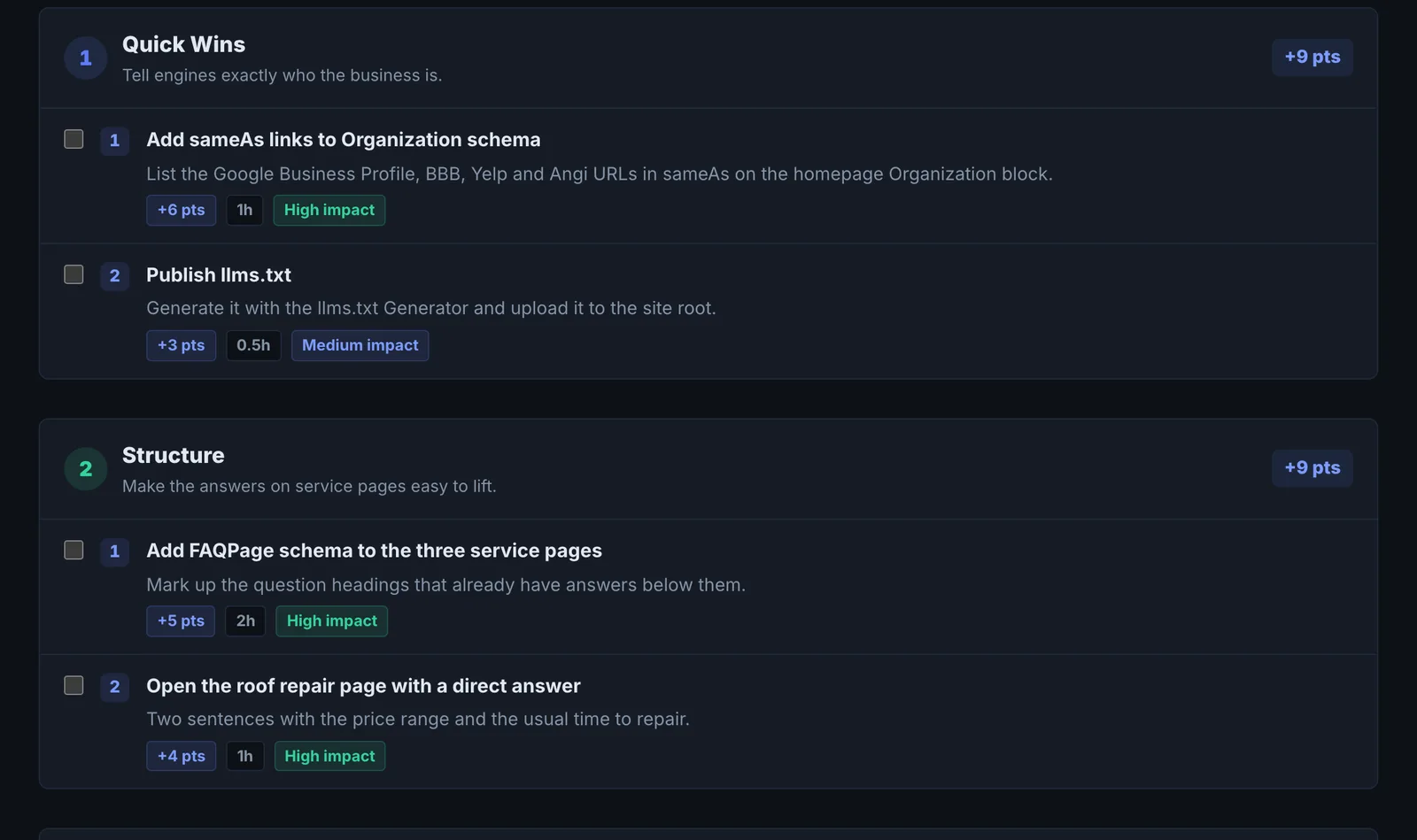
- Weekly tasks: each with effort and an estimated gain.
Implementing the fixes#
Apply the copy-paste fixes in order, then re-run the Page Auditor to update the plan's starting point.
Worked example#
An accountant runs the Page Auditor on the home page, then opens the AI Visibility Plan.
Top priority: the audit found robots.txt blocking GPTBot and ClaudeBot. Weekly tasks: week 1, unblock the crawlers (low effort, largest estimated gain); week 2, add AccountingService schema with @id; week 3, rewrite the services section into direct answers.
The accountant does week 1 in ten minutes in the hosting panel and re-audits: the crawler finding clears, and the next plan starts with the schema task.
Best practice#
Generate a new plan each month from fresh audit results.
Troubleshooting
It asks for an audit first #
The plan reads your most recent saved audit for the domain. Run the Page Auditor or the AI Visibility Score first, then open the plan.
The plan repeats fixes you already made #
It reads the latest audit, which was taken before your change. Re-audit the page, then rebuild the plan.
The estimated gains do not appear in the score #
Gains are estimates from the score's weights. On-site fixes show on the next audit once they are live; anything depending on engines re-reading the site takes weeks.
Not listed here? See Common problems for limits, checks, plans and pages that cannot be read.
Questions
What does it use? #
Why does it need an audit first? #
Does it use checks? #
Something here does not match what you see in the app? Tell us and we will fix the guide.