 Citerank
Reports, branding and notifications
In Settings you set how Citerank reports to you and your clients: your logo for white-label PDF reports and client portals (Agency plan), the Monday weekly digest, instant citation drop alerts, and Slack or Microsoft Teams delivery.
Step by step
- Open Settings, Reports & Branding #
Find it under Settings in the left sidebar.
- Add your logo #
Drop a logo file to upload it, or link to one you host. Uploading is safer: a linked logo disappears from reports if that address stops working.
- Choose notifications #
Turn on the weekly digest (every Monday: score trends, dropped domains, top issues) and citation drop alerts (an email when a monitored domain's citation rate drops by more than 10%).
- Connect Slack or Teams #
On the Integrations tab, paste a Slack or Teams webhook URL, save, and send a test.
- Share your referral link #
Optional, on the Plan & Billing tab: earn a free month when someone you refer upgrades to Pro or Agency.
Why it matters#
Agencies resell results, not tools. White-label reports and portals let you deliver Citerank's findings under your own brand, and notifications mean you hear about drops before your client does.
What it checks#
Settings, not analysis: your logo, digest and alert preferences, and Slack or Teams delivery.
Reading the results#
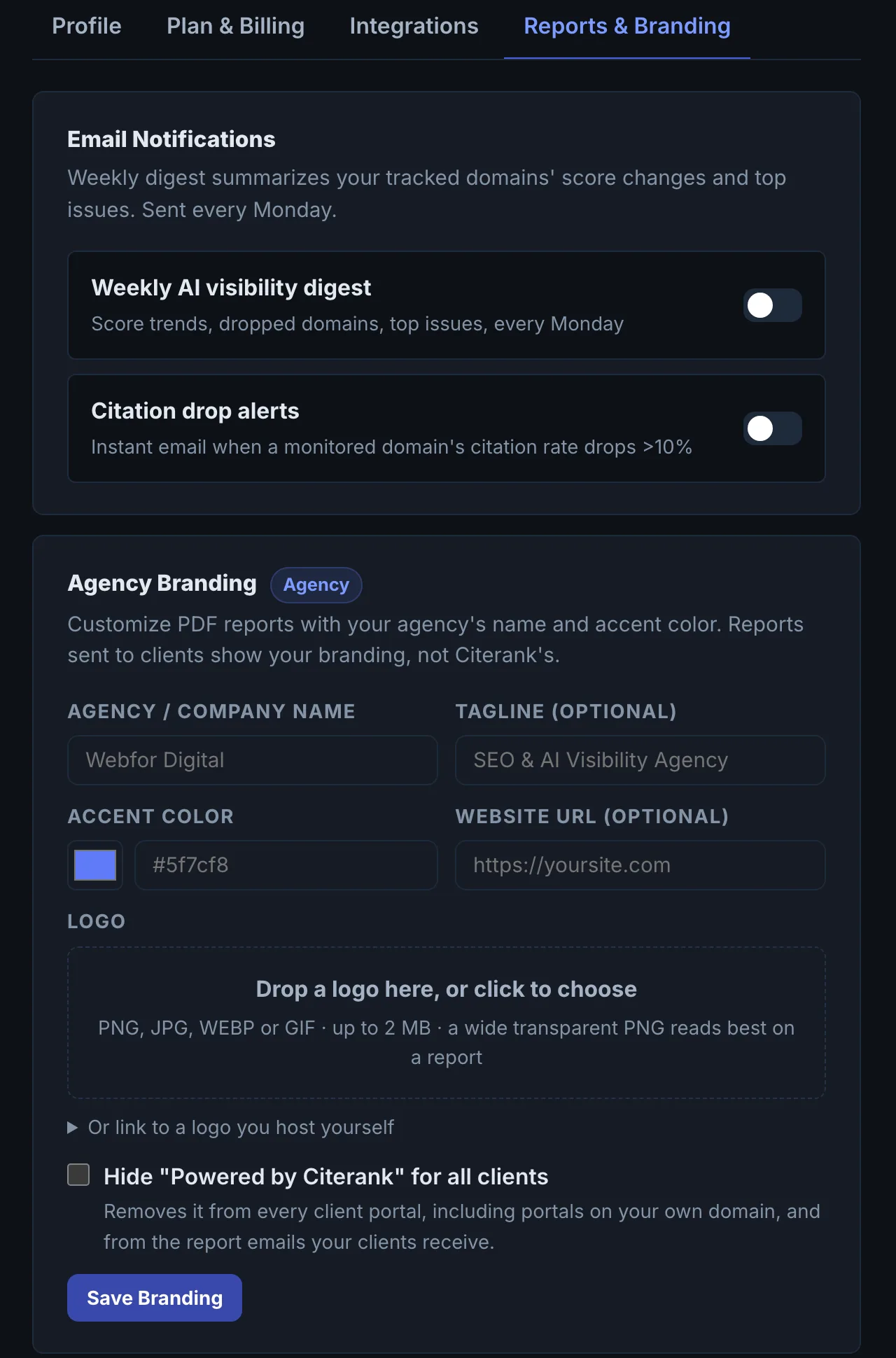
Each switch shows whether that email is on. Agency Branding shows the name, tagline, accent color, website and logo your reports and portals will use; nothing changes until you choose Save Branding. Slack and Teams delivery is on the Integrations tab, where each webhook has a Send test button.
Implementing the fixes#
Upload your logo rather than linking it, turn on drop alerts for every client domain, and route alerts to the channel your team watches.
Best practice#
Send each client their own portal and keep your internal alerts in Slack or Teams.
Questions
What does white-label remove? #
Which plan has white-label PDFs? #
Something here does not match what you see in the app? Tell us and we will fix the guide.