 Citerank
Projects: one home for each site you track
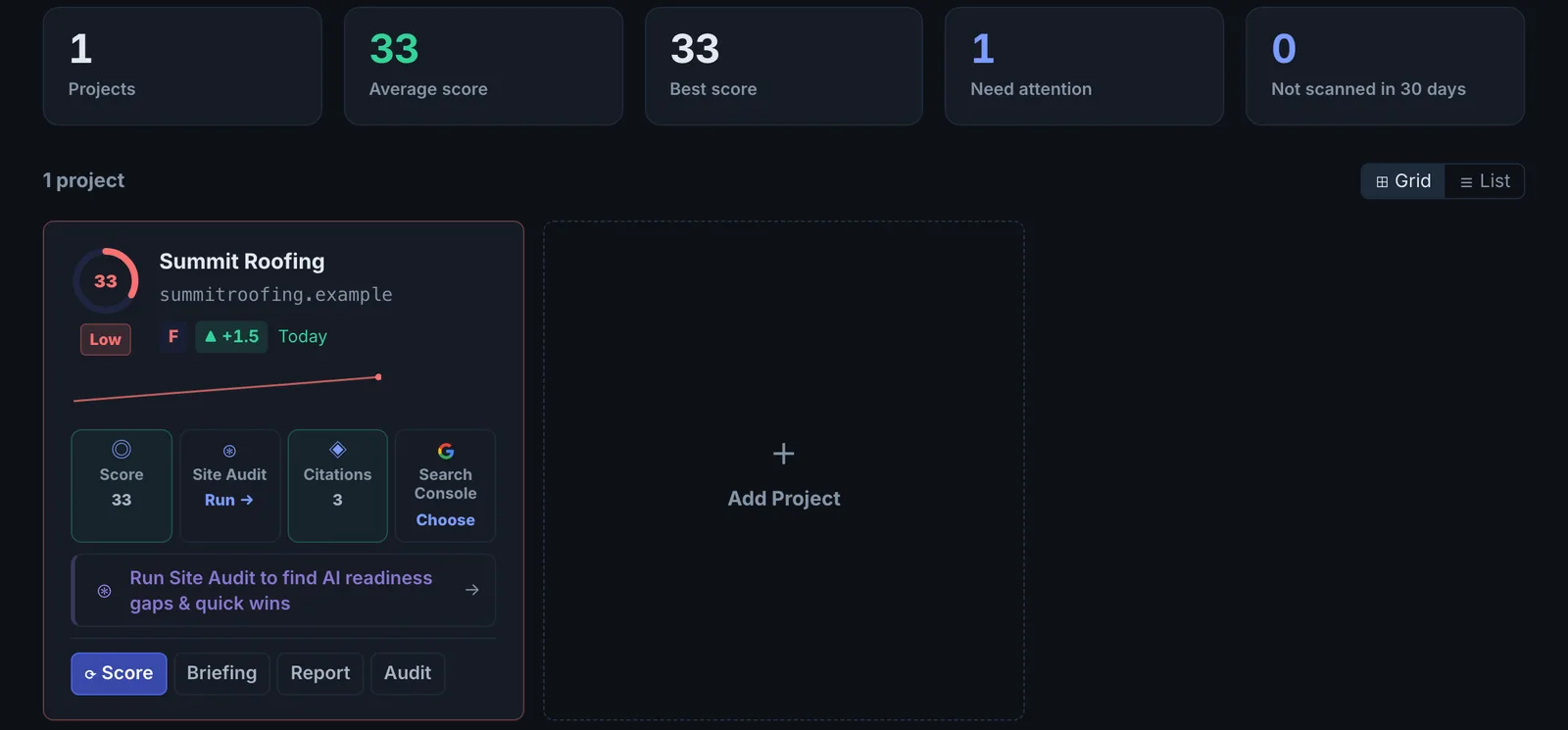
A project is one domain you work on. It collects every scan any tool runs on that domain into one history, stores its competitors and notes, and is the unit you share with teammates.
Step by step
- Open Projects #
Choose Projects under Home in the left sidebar.
- Add a domain #
Add the site's domain, for example example.com. Use the bare domain so scans of any page on the site land in the same project.
- Open the project #
Click the project to open its panel. This is where its history, competitors, notes, Search Console connection and team live.
- Add competitors #
Record the two to five competitors you actually lose deals to. Competitor tools and reports use this list, so you do not retype it.
- Run tools on the domain #
Every tool run on this domain, by you or a teammate, is saved to the project's history, so What Changed and the progress views have something to compare.
Why projects matter#
Most Citerank tools take a URL or a domain. Without a project, each run is a one-off result. With one, runs on that domain become a timeline: you can see the score move after a fix, compare audits, and show a client progress. If you manage several sites, make one project per site.
What lives in a project#
| Part | What it is for |
|---|---|
| History | Every scan run on the project's domain, by anyone with access |
| Competitors | The rivals competitor tools and reports compare you with |
| Notes | Context for you and your team, for example what changed on the site and when |
| Search Console | Connect a property to bring real search data into the project |
| Team Access | Invite teammates as Viewers or Editors (Agency plan) |
Shared projects#
If someone shares a project with you, it appears on your Projects page with a label showing who shared it and your role. Tools you run on that project's domain use the owner's plan. Everywhere else you are on your own plan. You can leave a shared project at any time, and the owner can invite you again. See Team seats.
Good habits#
- Add a note whenever the site changes (new schema, a robots.txt edit, a redesign). AI citation changes lag site changes by days or weeks, and the note is how you connect cause and effect later.
- Keep the competitor list short and real. Five competitors you actually meet in deals beat twenty you found in a tool.
Questions
Should I make one project per client? #
Can teammates see my projects? #
Something here does not match what you see in the app? Tell us and we will fix the guide.